LucrativeIT Driving School Management System
Installation, configuration, and user guide for driving schools and instructors
Introduction
LucrativeIT Driving School Management System is a WordPress plugin for running a driving school online. Students book lessons on your website, each booking is matched to a free instructor, and you manage services, instructors, locations, availability, and bookings from one modern dashboard.
Students only see times that can actually be booked: an instructor who teaches the lesson must be available for its full length, with no clashing booking. Payment can be taken online with Stripe, through WooCommerce, or as a direct (manual) payment such as bank transfer or cash.
Quick start: Install and activate the plugin, choose Import demo data on the welcome screen to see a complete working school, then open Settings to set your currency, booking flow, and payment method. The Book a Lesson and Booking Checkout pages are created for you automatically.
Key features
- Online lesson booking with live availability and no double bookings
- Two booking flows: pick from generated time slots, or enter a start time and check availability
- Students choose from the instructors free for the selected time
- Service categories, services (lessons) with duration and price, and featured services
- Instructor profiles linked to the services they teach
- Multiple training locations, with each service offered at one or more of them
- Instructor availability by date range and daily hours, including blocked time off
- Admin booking creation for phone and walk-in students, with live slot checks
- Stripe Checkout, WooCommerce, or direct payment
- Custom booking form builder for the checkout page
- Instructor email notifications with an editable template and built-in SMTP
- Dashboard with today's figures, all-time totals, and a 6-month revenue chart
- One-click demo data, including sample bookings, so the dashboard is populated from day one
System Requirements
| Requirement | Details |
|---|---|
| WordPress | 6.4 or higher (tested up to 7.1) |
| PHP | 8.0 or higher |
| HTTPS | Required in production if you take Stripe payments, so Stripe can deliver webhooks |
| Payment (optional) | A Stripe account, or WooCommerce with any payment gateway. Direct payment needs neither. |
| Permalinks | Any setting other than "Plain" so the REST API and Stripe webhook URLs resolve |
| Time zone | Set your site time zone under Settings → General. All lesson times are calculated in that time zone. |
| An SMTP provider is recommended so instructor notifications are delivered reliably |
Compiled assets ship in the build/ folder, so you do not need Node.js or npm.
Installation
Installation takes a few minutes and does not need SSH access.
-
Upload the plugin
In WordPress, go to Plugins → Add New → Upload Plugin, choose the plugin ZIP file, and click Install Now.
You can also extract the ZIP and upload the
lucrativeit-driving-school-management-systemfolder to/wp-content/plugins/over FTP. -
Activate
Click Activate Plugin. A new Driving School menu appears in the admin sidebar, and you are taken straight to its dashboard.
On activation the plugin creates its database tables and two front-end pages: Book a Lesson (
/book-a-lesson/, containing[ldsms_booking]) and Booking Checkout (/booking-checkout/, containing[ldsms_checkout]). -
Import demo data or start fresh
A welcome dialog asks whether to import demo data. Choose Import demo data to explore a working school, or Start without demo data to add your own records. See Demo Data Import.
-
Set up your school
Add your locations, service categories, services, instructors, and instructor availability, in that order. Then open Settings to choose your currency, booking flow, and payment method.
Demo Data Import
The demo import builds a complete, realistic school in one click so you can try the booking flow and see a fully populated dashboard straight away. It creates:
- 2 service categories (Driving Lessons and Test Preparation)
- 4 lesson services with prices and durations
- 3 instructors, each assigned to the services they teach
- Instructor availability for the next 6 months
- A demo location, if you have not added one yet
- About 30 sample bookings across the last 5 months and the next 2 weeks
- Paid, pending, and cancelled bookings, so the revenue figures and monthly chart are filled in
If you skip the import, the dashboard keeps offering it while your school has no categories, services, instructors, or availability. To protect your real data, the full import is blocked once you have added your own records.
If you already have services and instructors but no paid bookings yet, the dashboard shows a No revenue to show yet card instead. Click Import sample bookings to add sample bookings for your existing services and instructors, or No thanks to hide the card.
Sample bookings are created without sending any emails. Their booking codes start with DEMO and they carry a "Sample booking" note, so they are easy to find and delete from the Bookings page before you go live.
Post-Installation Checklist
- Set the site time zone under WordPress Settings → General
- Set your currency, buffer time, and minimum notice under Driving School → Settings → General
- Choose how students pick a time (time slots or time search)
- Review the checkout fields under Settings → Booking form
- Enable Stripe, WooCommerce, or direct payment under Settings → Payment, and add the Stripe webhook if you use Stripe
- Set the admin notification email and review the instructor email under Settings → Email
- Configure and test SMTP under Settings → SMTP
- Replace the demo location, services, and instructors with your own, and delete the
DEMObookings - Add the Book a Lesson page to your site menu
- Place a test booking in Stripe test mode before going live
- Update your terms and privacy policy to mention Stripe or your WooCommerce gateway
Settings
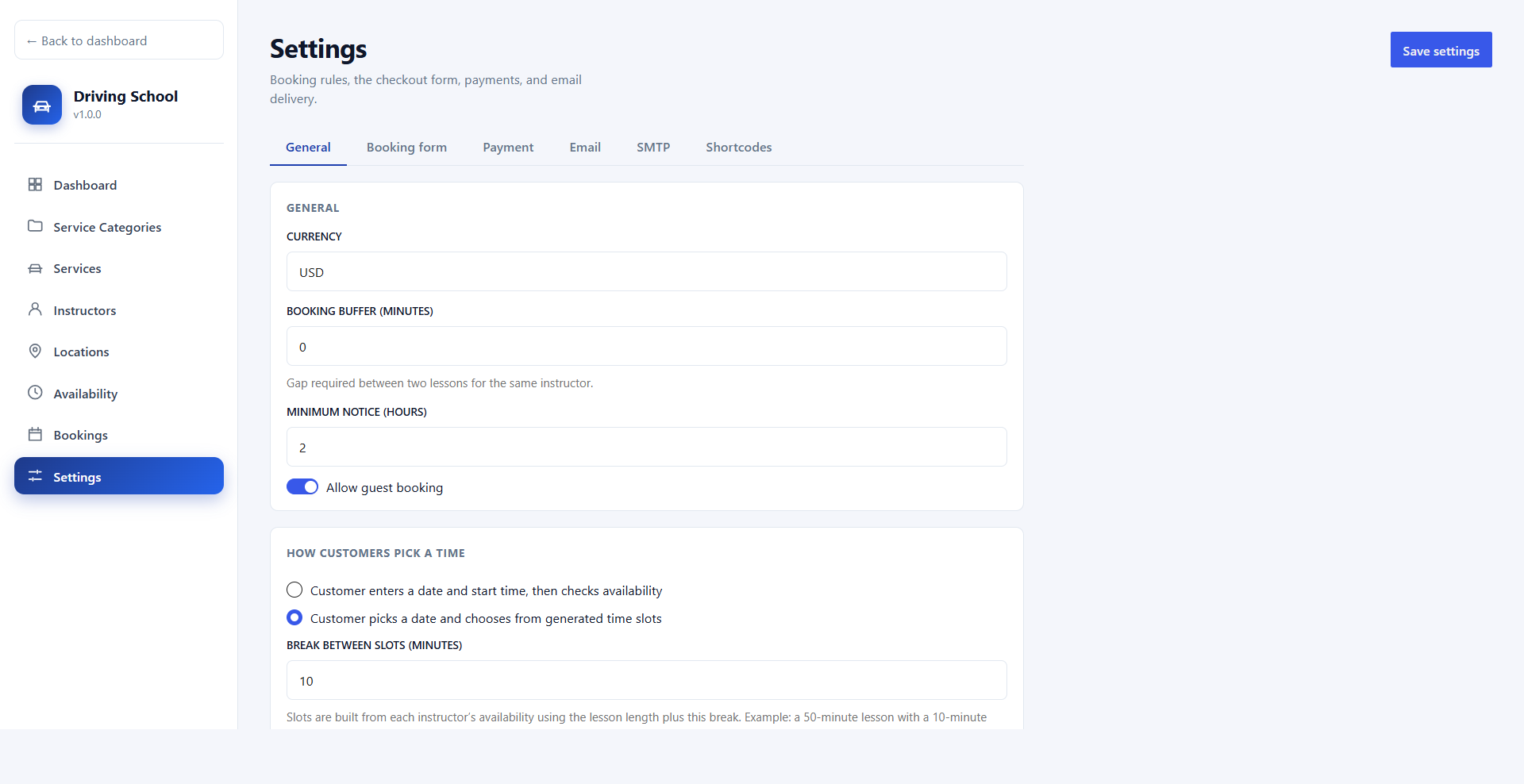
All configuration lives under Driving School → Settings, split into six tabs: General, Booking form, Payment, Email, SMTP, and Shortcodes. Click Save settings at the top right after making changes.
General & Booking Flow
| Setting | Description |
|---|---|
| Currency | Default three-letter currency code for new services, for example USD. |
| Booking buffer (minutes) | Gap required between two lessons for the same instructor. 0 allows back-to-back lessons. |
| Minimum notice (hours) | How far ahead a lesson must be booked. The default is 2 hours, which stops last-minute bookings. |
| Allow guest booking | When on, students can book without logging in. Logged-in students have their name and email filled in. |
Under How customers pick a time, choose one of two booking flows:
- Customer enters a date and start time, then checks availability — the student types a time and the plugin shows which lessons and instructors are free.
- Customer picks a date and chooses from generated time slots — the plugin builds start times from each instructor's hours. Set Break between slots to control spacing: for example, a 50-minute lesson with a 10-minute break gives slots at 09:00, 10:00, 11:00, and so on.
Booking Form
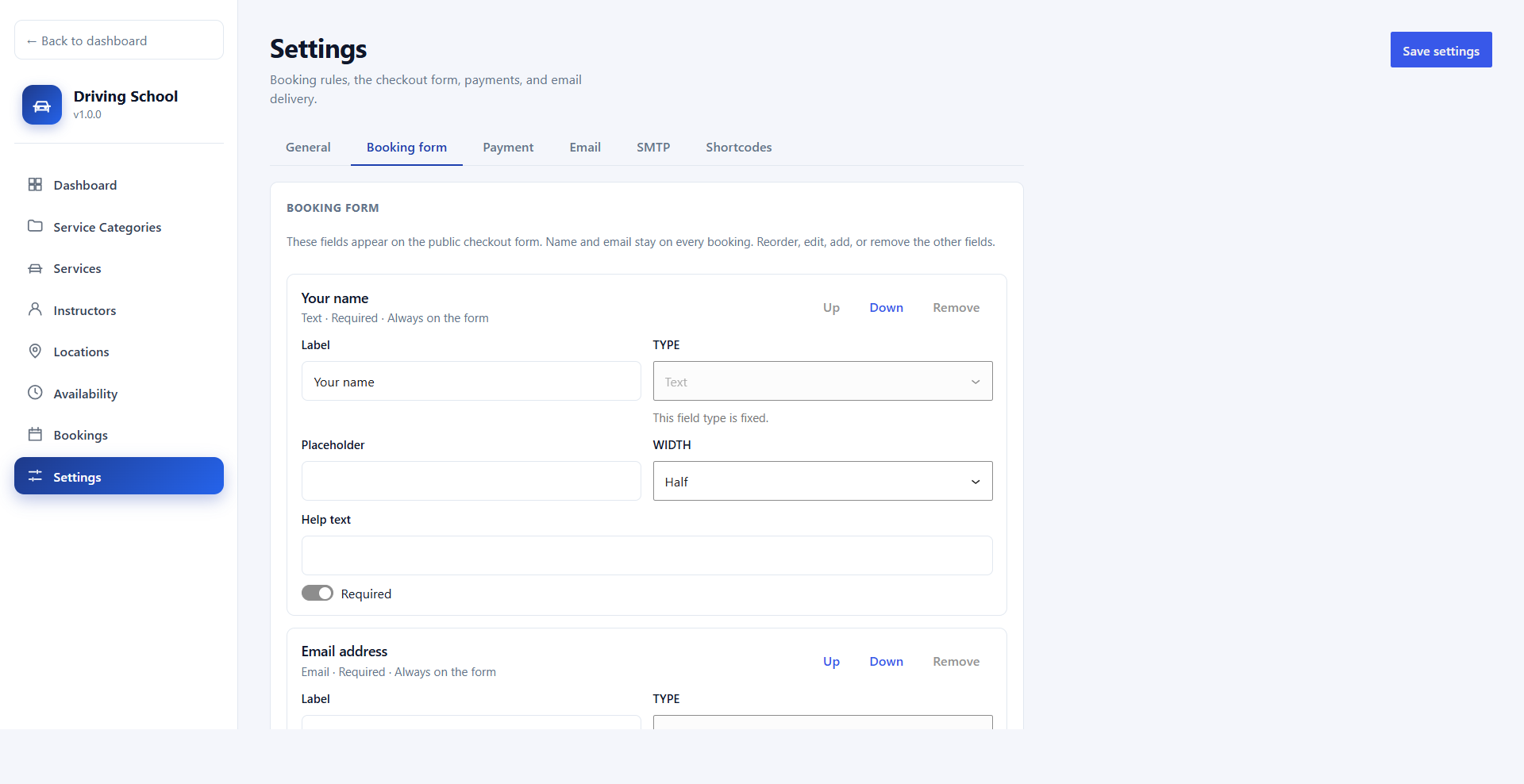
The Booking form tab controls the fields students fill in on the checkout page. Your name and Email address are always on the form. You can reorder, edit, add, or remove every other field.
For each field you can set the label, placeholder, help text, whether it is required, and its width (half or full). Available field types are text, text area, email, phone, number, date, dropdown, radio, and checkbox. Use Up and Down to change the order.
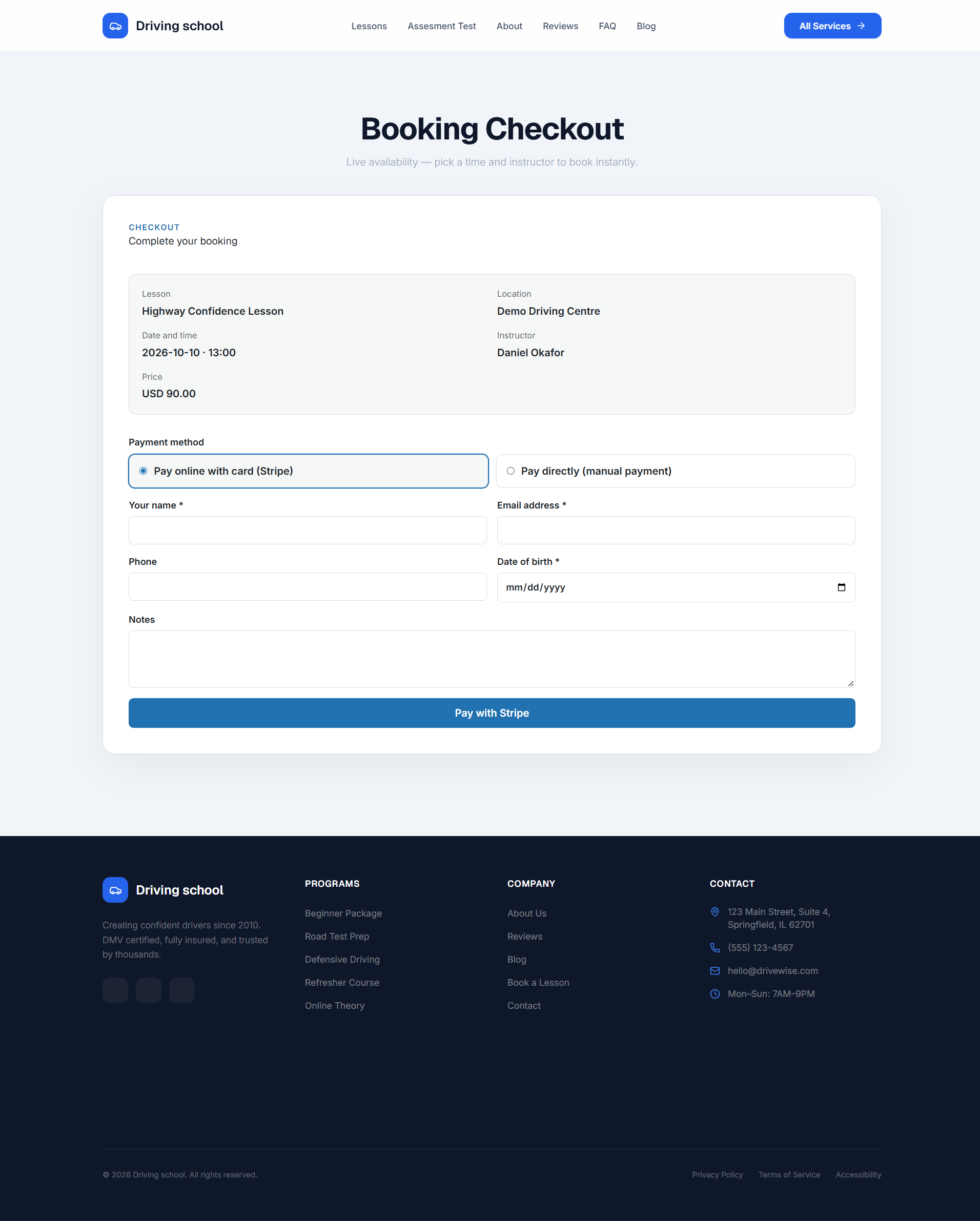
By default the form also includes Phone, Date of birth (required), and Notes.
Payments & Webhooks
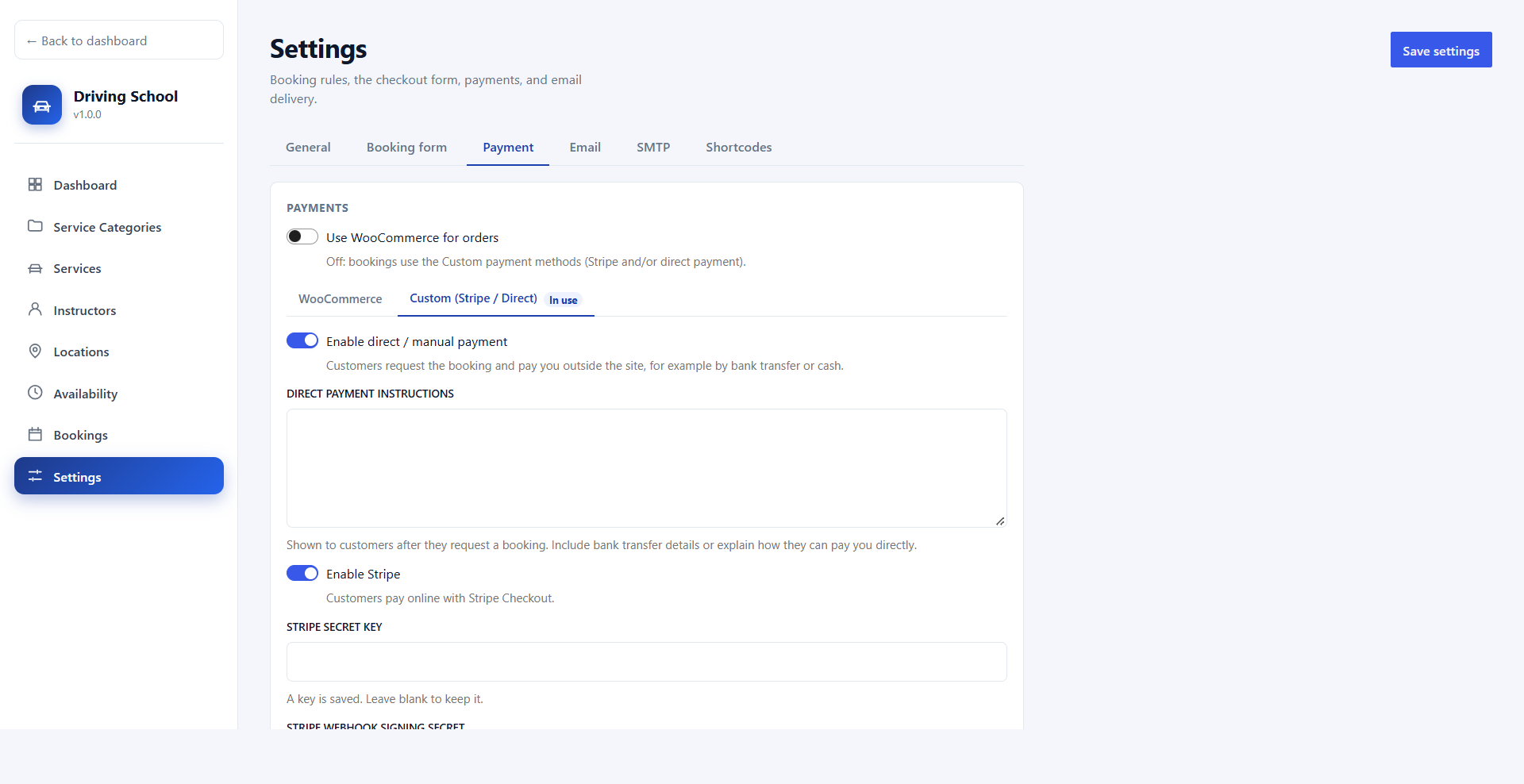
The Payment tab offers two modes:
- Custom (Stripe / Direct) — the default. Enable either or both methods; if both are on, students choose at checkout.
- WooCommerce — turn on Use WooCommerce for orders to send bookings to the WooCommerce checkout and use any WooCommerce payment gateway. Order status changes, including refunds, sync back to the booking. WooCommerce must be installed and active.
| Setting | Description |
|---|---|
| Enable direct / manual payment | Students request the booking and pay you outside the site, for example by bank transfer or cash. The booking stays unpaid until you mark it paid. |
| Direct payment instructions | Shown to students after they request a booking. Include bank details or explain how to pay. |
| Enable Stripe | Students pay online with Stripe Checkout. Card details are entered on Stripe's hosted page and never touch your server. |
| Stripe secret key | Your Stripe secret key (sk_test_… or sk_live_…). Once saved, leave the field blank to keep it. |
| Stripe webhook signing secret | The signing secret (whsec_…) of the webhook you create in Stripe. |
In your Stripe dashboard, go to Developers → Webhooks, add an endpoint with the URL shown on the Payment tab, and enable these events:
| Endpoint URL | Events to enable |
|---|---|
https://yoursite.com/wp-json/lucrativeit-driving-school-management-system/v1/public/stripe-webhook |
checkout.session.completedcheckout.session.async_payment_succeeded |
Email Notifications
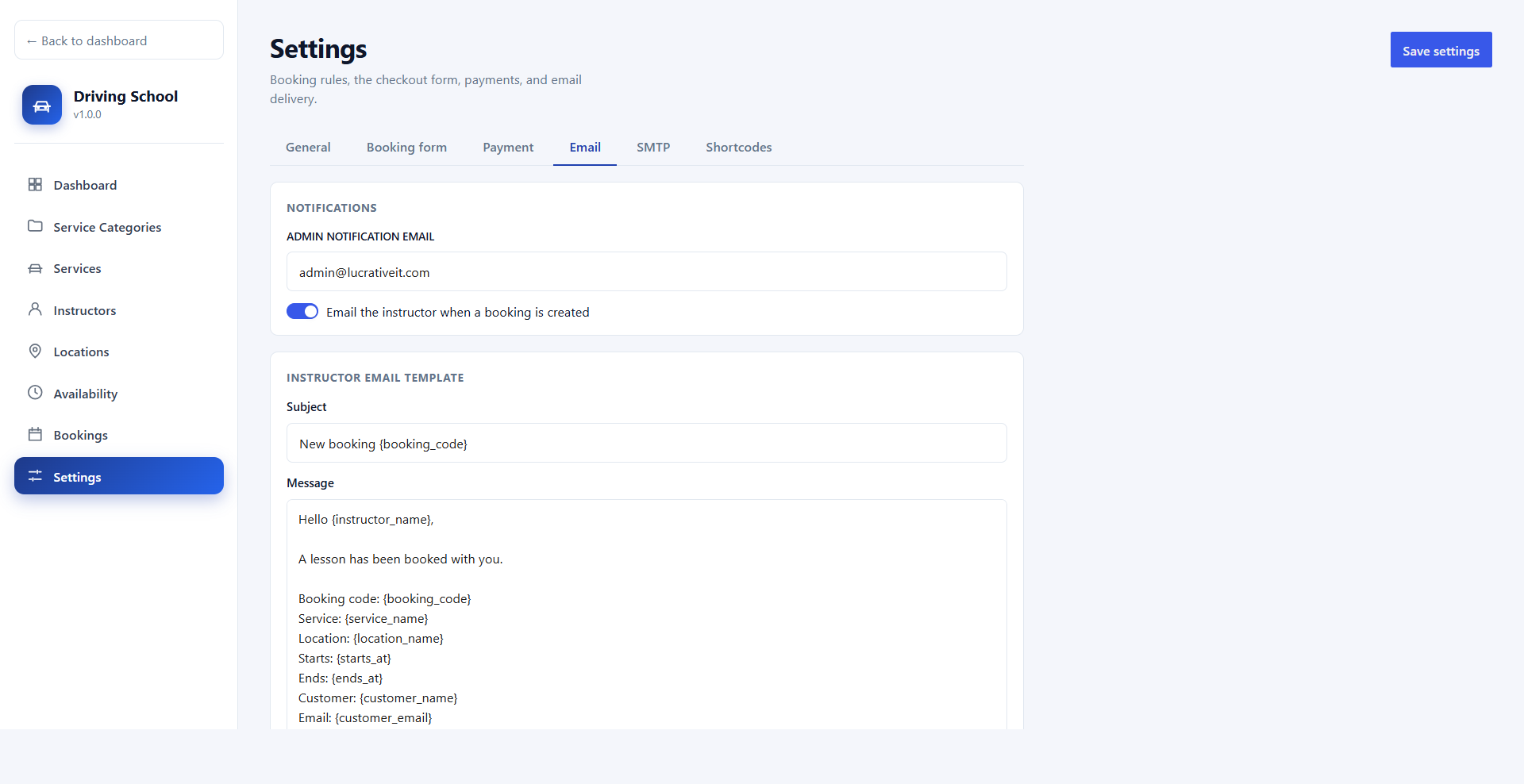
Under Notifications, set the Admin notification email and turn on Email the instructor when a booking is created to notify the assigned instructor of every new booking.
The Instructor email template has an editable subject and message, using these placeholders:
| Placeholder | Replaced with |
|---|---|
{booking_code} | The unique booking code |
{instructor_name} | The assigned instructor's name |
{service_name} / {location_name} | The lesson and the training location |
{starts_at} / {ends_at} | Lesson start and end date and time |
{customer_name} / {customer_email} | The student's name and email |
{customer_phone} / {customer_dob} | The student's phone number and date of birth |
{status} / {notes} | Booking status and the student's notes |
{form_fields} | Answers to any extra booking form fields. If omitted, they are appended to the end of the email. |
SMTP
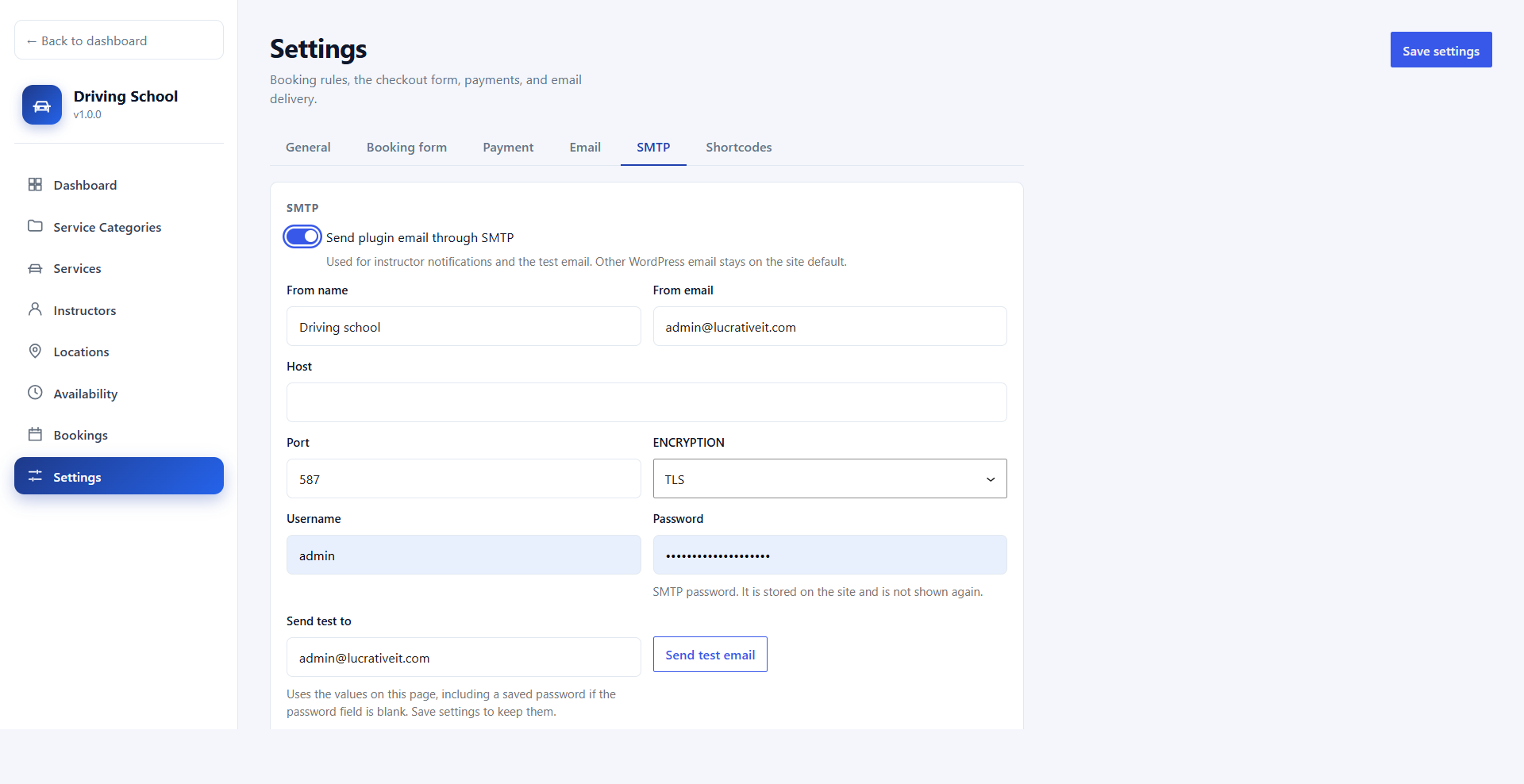
By default, emails go through WordPress's wp_mail(), which many hosts deliver poorly. Enable Send plugin email through SMTP and enter the from name, from email, host, port, encryption (TLS or SSL), username, and password from your email provider. Gmail (with an App Password), Amazon SES, SendGrid, Mailgun, and any standard SMTP server all work.
SMTP is used for instructor notifications and the test email only; other WordPress email is unchanged. The password is stored on the site and not shown again; leave the field blank when saving to keep it. Enter an address under Send test to and click Send test email to confirm delivery.
Shortcodes Tab
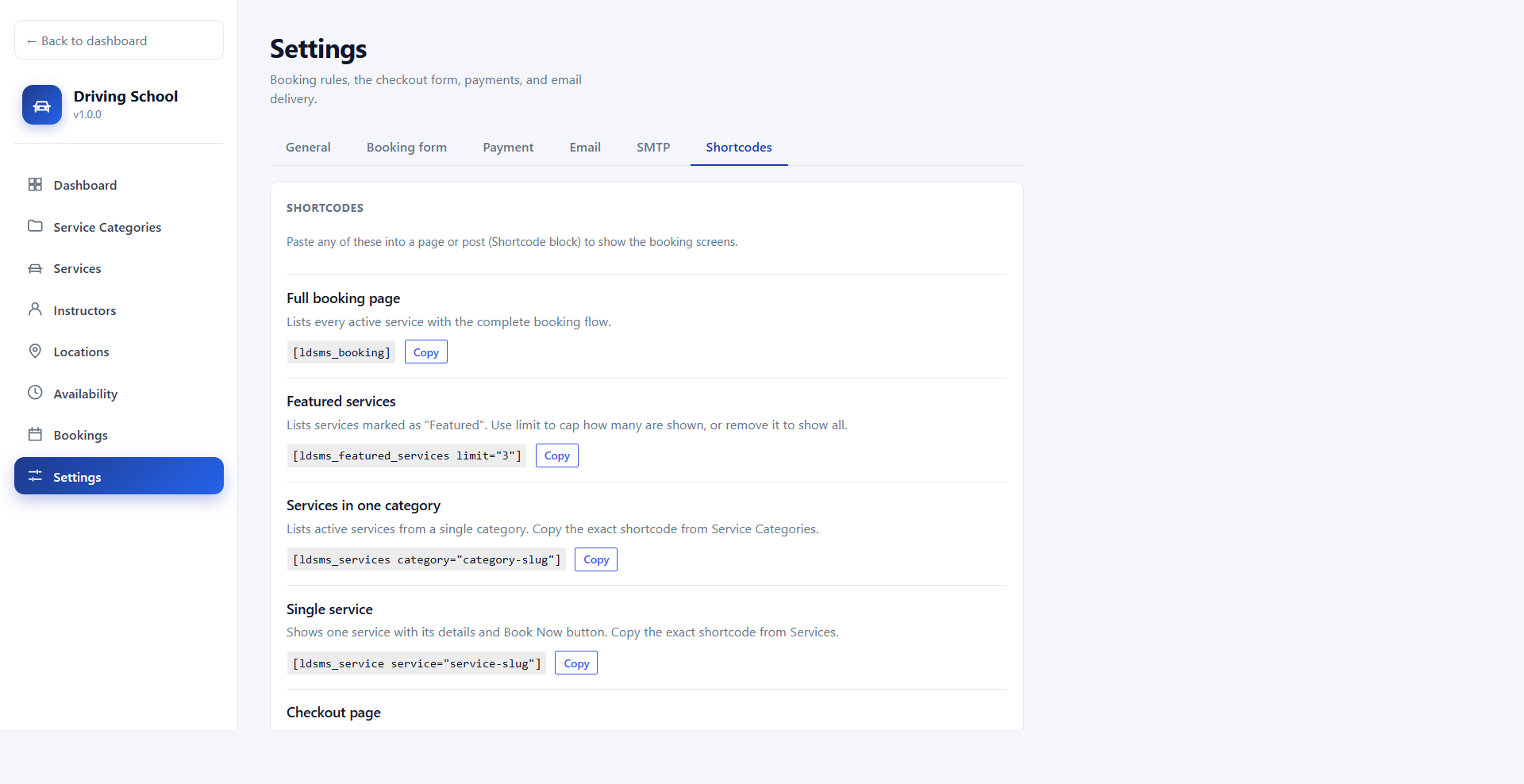
The Shortcodes tab lists every shortcode with a short description and a Copy button, ready to paste into a page or a Shortcode block. See Shortcodes for the full reference.
Admin Guide
Everything you need to run the school is in the Driving School workspace: Dashboard, Service Categories, Services, Instructors, Locations, Availability, Bookings, and Settings. Use ← Back to dashboard to return to the main WordPress admin.
Dashboard
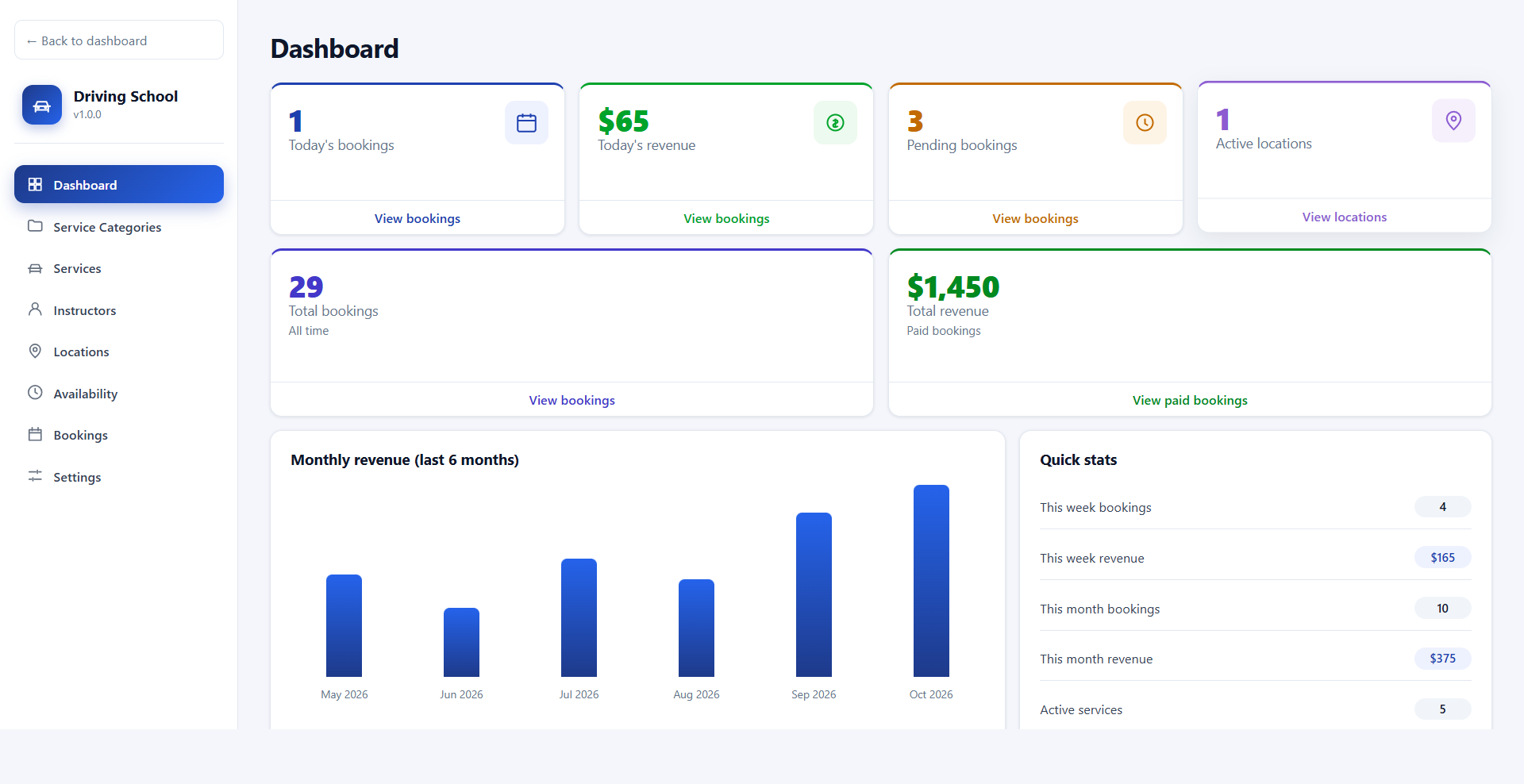
The dashboard summarises your school at a glance:
- Today's bookings and Today's revenue
- Pending bookings waiting for confirmation
- Active locations
- Total bookings (all time) and Total revenue (paid bookings)
- A Monthly revenue chart for the last 6 months
- Quick stats: this week's and this month's bookings and revenue, and active services
- Lists of upcoming and recent bookings
Each card links straight to the matching bookings or locations list. Revenue counts only bookings marked paid.
Service Categories
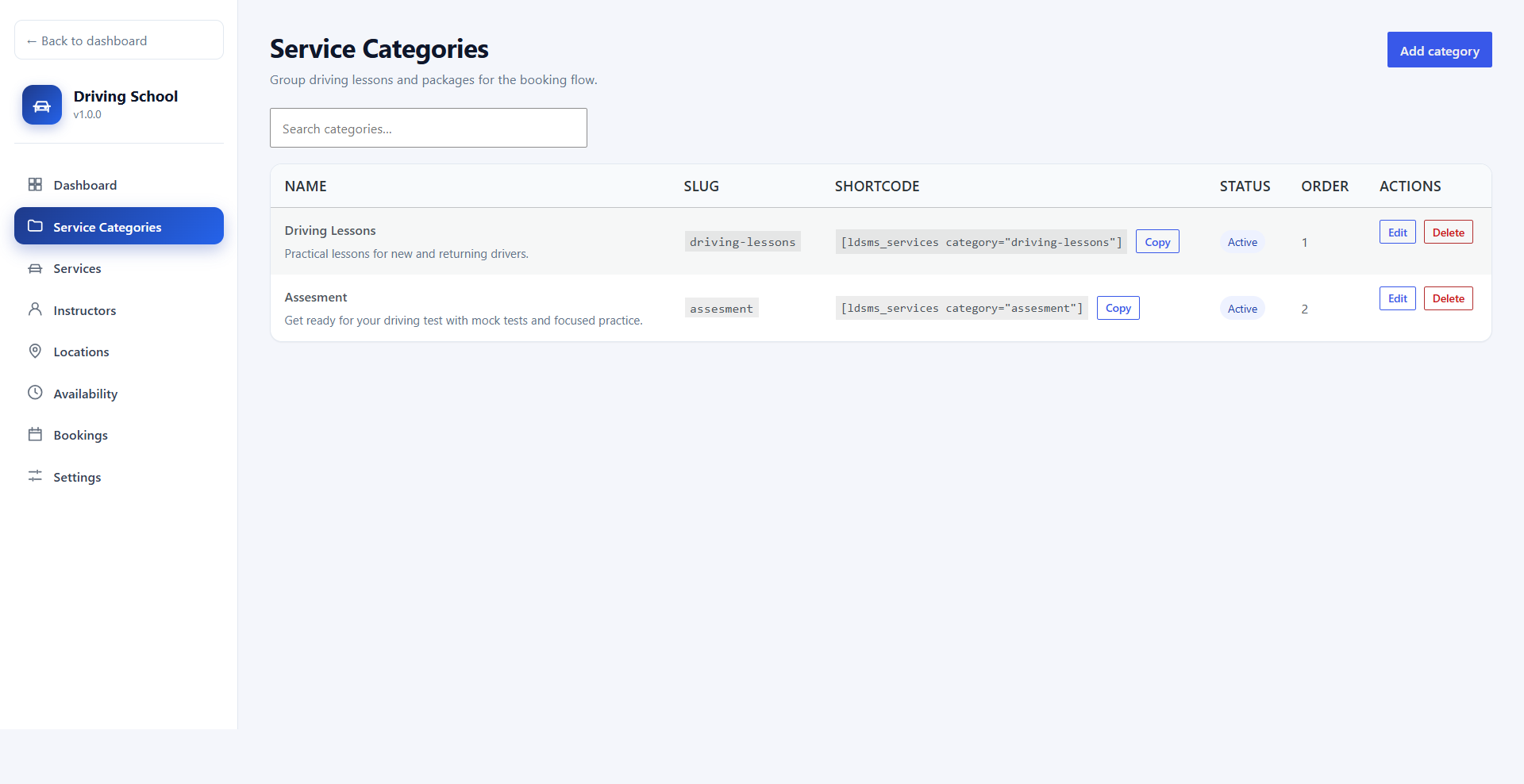
Group your lessons into categories, for example Driving Lessons, Test Preparation, or Motorcycle Training. Click Add category and enter a name, an optional slug, a description, the status, and a sort order.
Each row includes a ready-made shortcode, such as [ldsms_services category="driving-lessons"], with a Copy button. Paste it into any page to show only that category's lessons.
Services
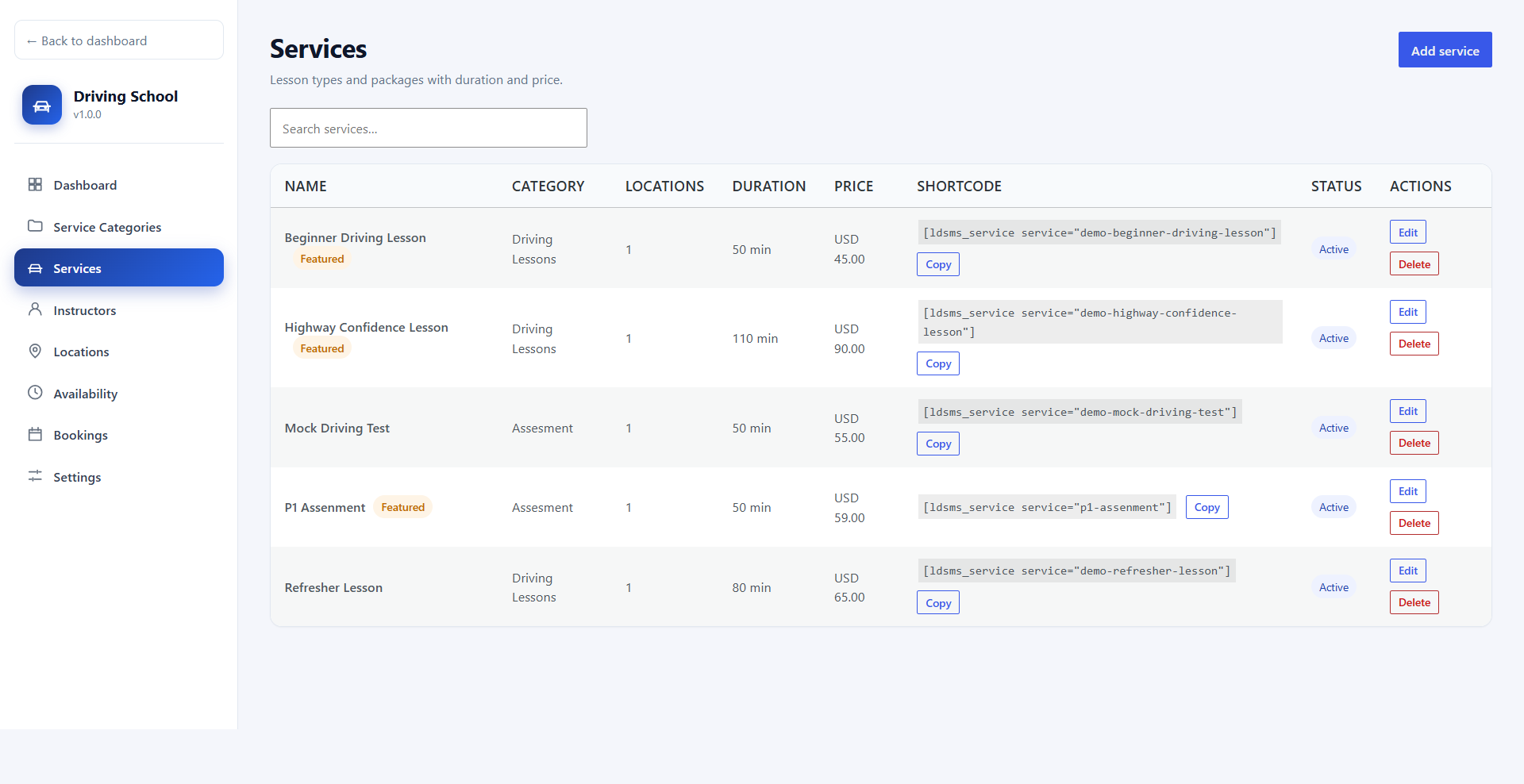
Services are the lessons and packages students book. Click Add service and set:
- Name, slug, and description
- Category
- Duration in minutes, which sets the lesson length and the generated time slots
- Price and currency
- Features, shown as a checklist on the service card (for example "Automatic car" or "Free pickup")
- Locations where the service is offered
- Featured, to include it in the
[ldsms_featured_services]shortcode - Status (active or inactive)
Each row shows a [ldsms_service service="…"] shortcode you can copy to display that one service with its Book Now button.
Instructors
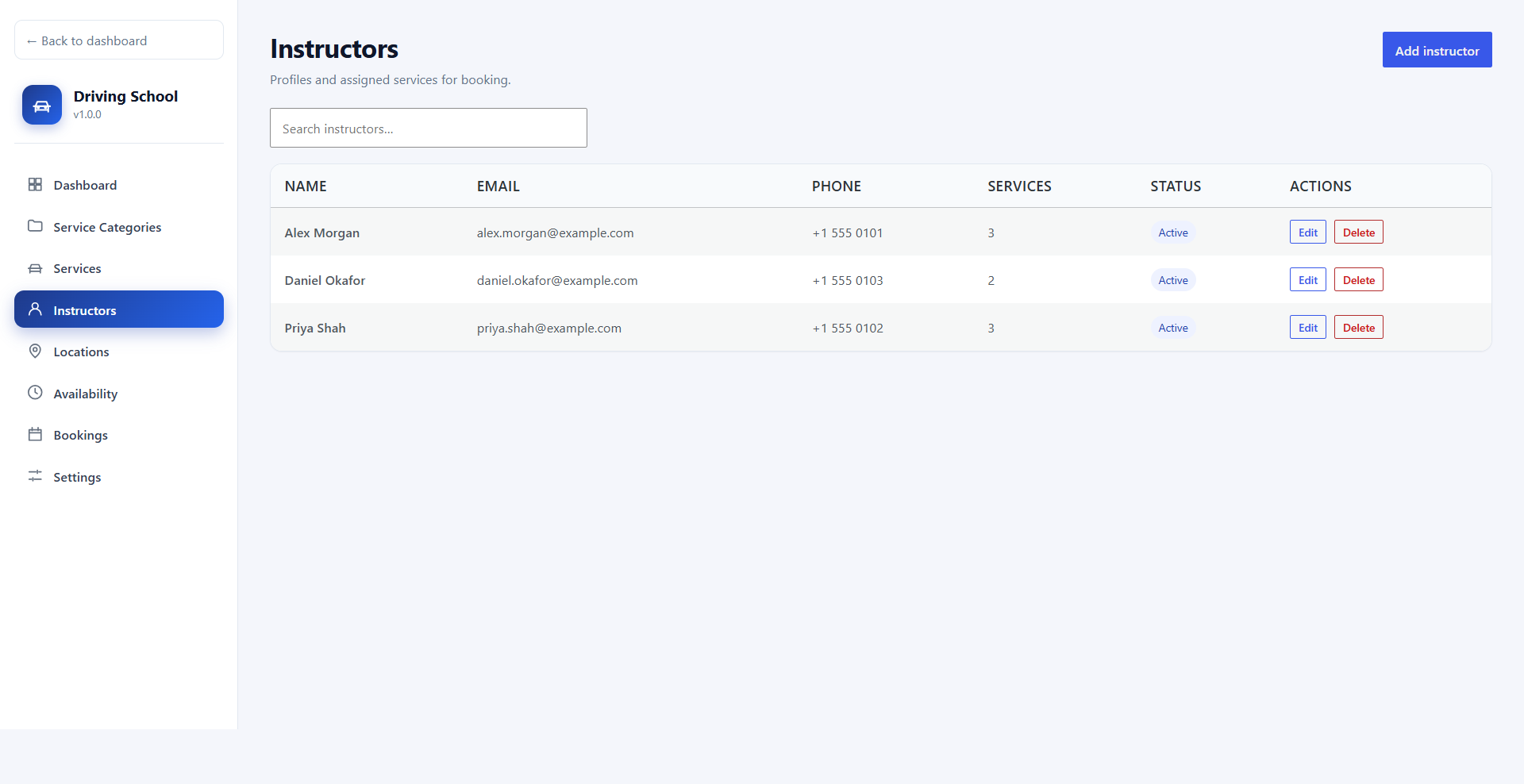
Add each instructor with Add instructor: name, email, phone, bio, status, and the services they teach. Instructors are only offered to students for the services assigned to them. The email address receives a notification for every new booking.
Locations
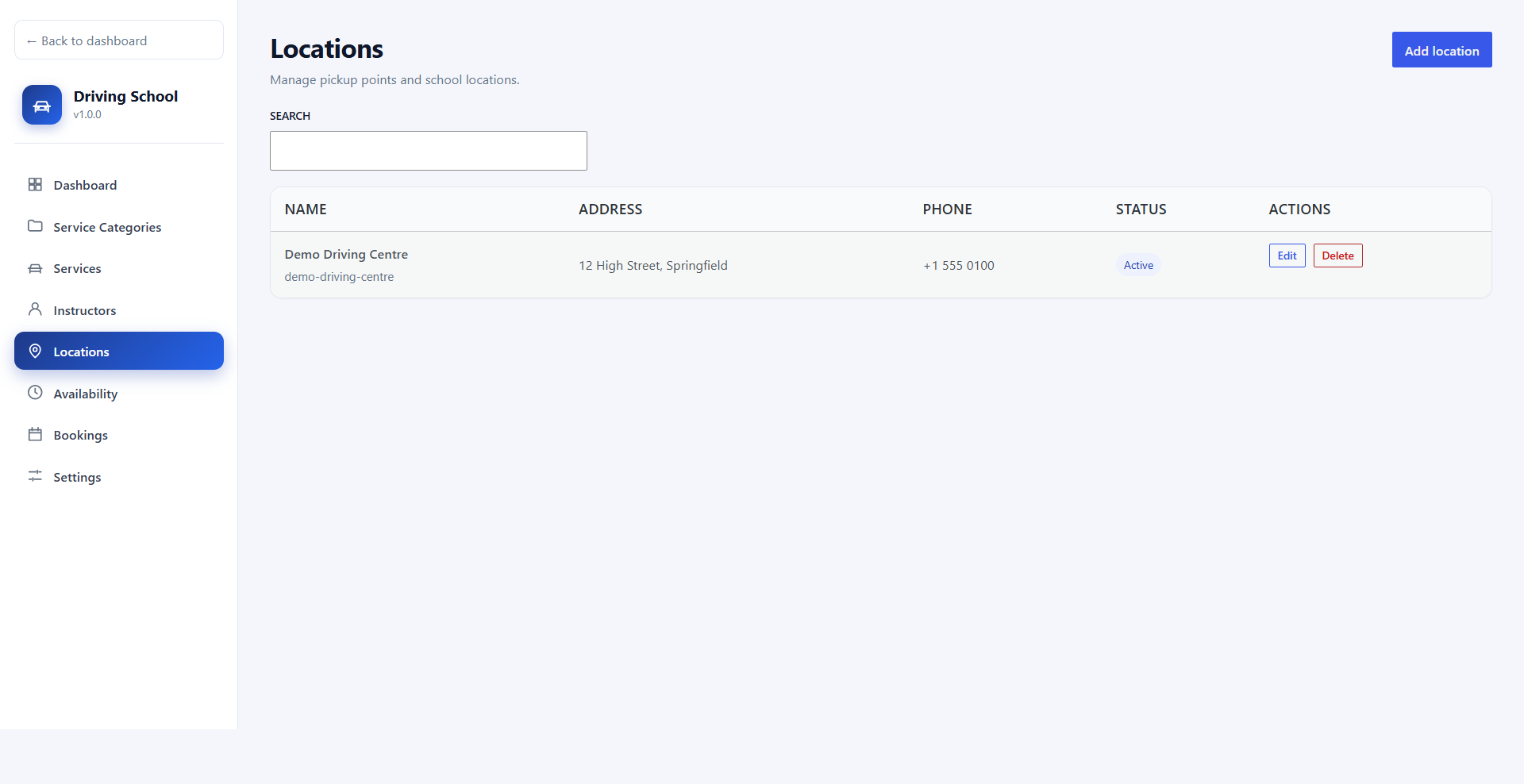
Manage your training centres and pickup points. Each location has a name, slug, address, city, state, postcode, phone, description, and status. Students choose a location first when booking, and only services offered at that location are shown.
Availability
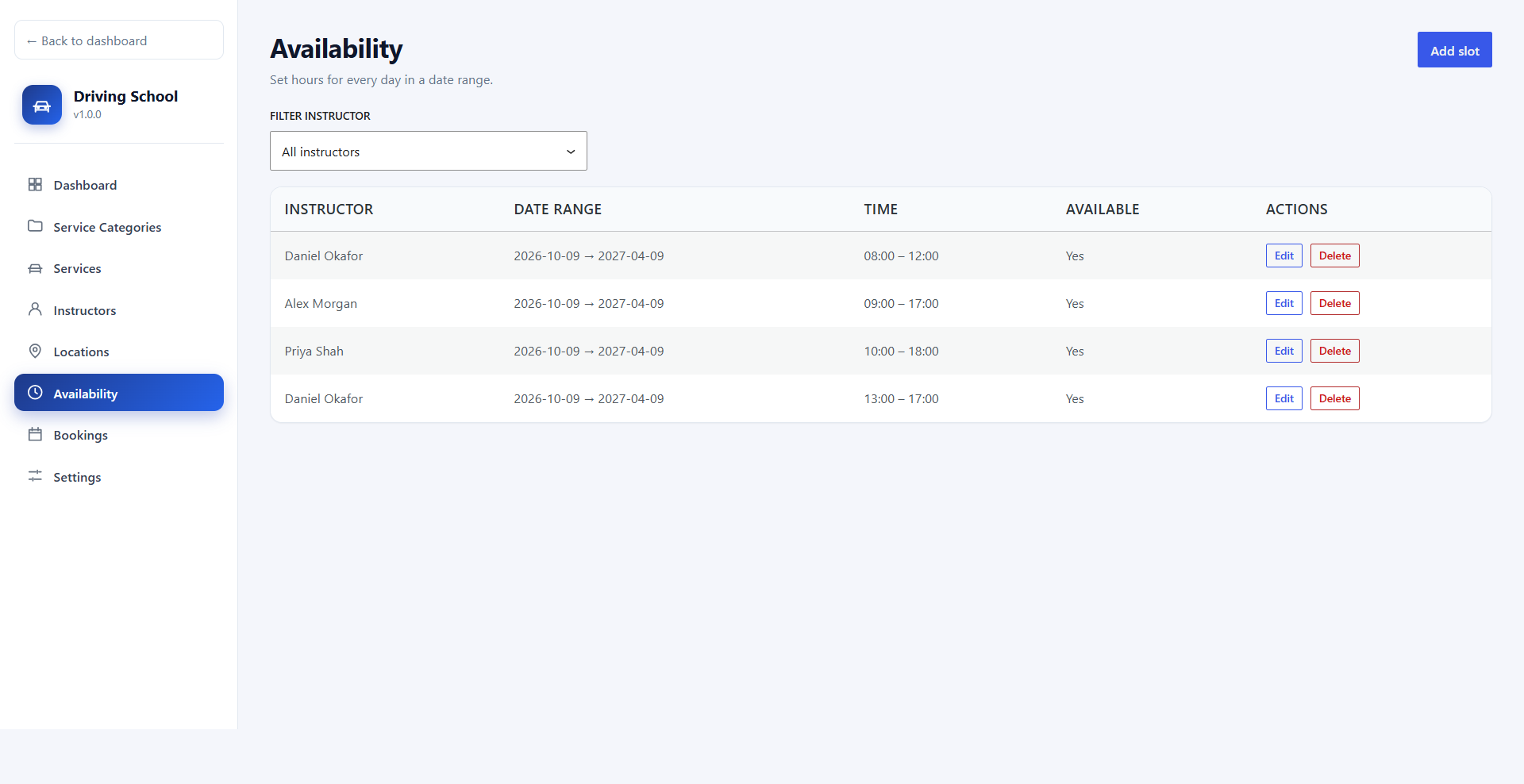
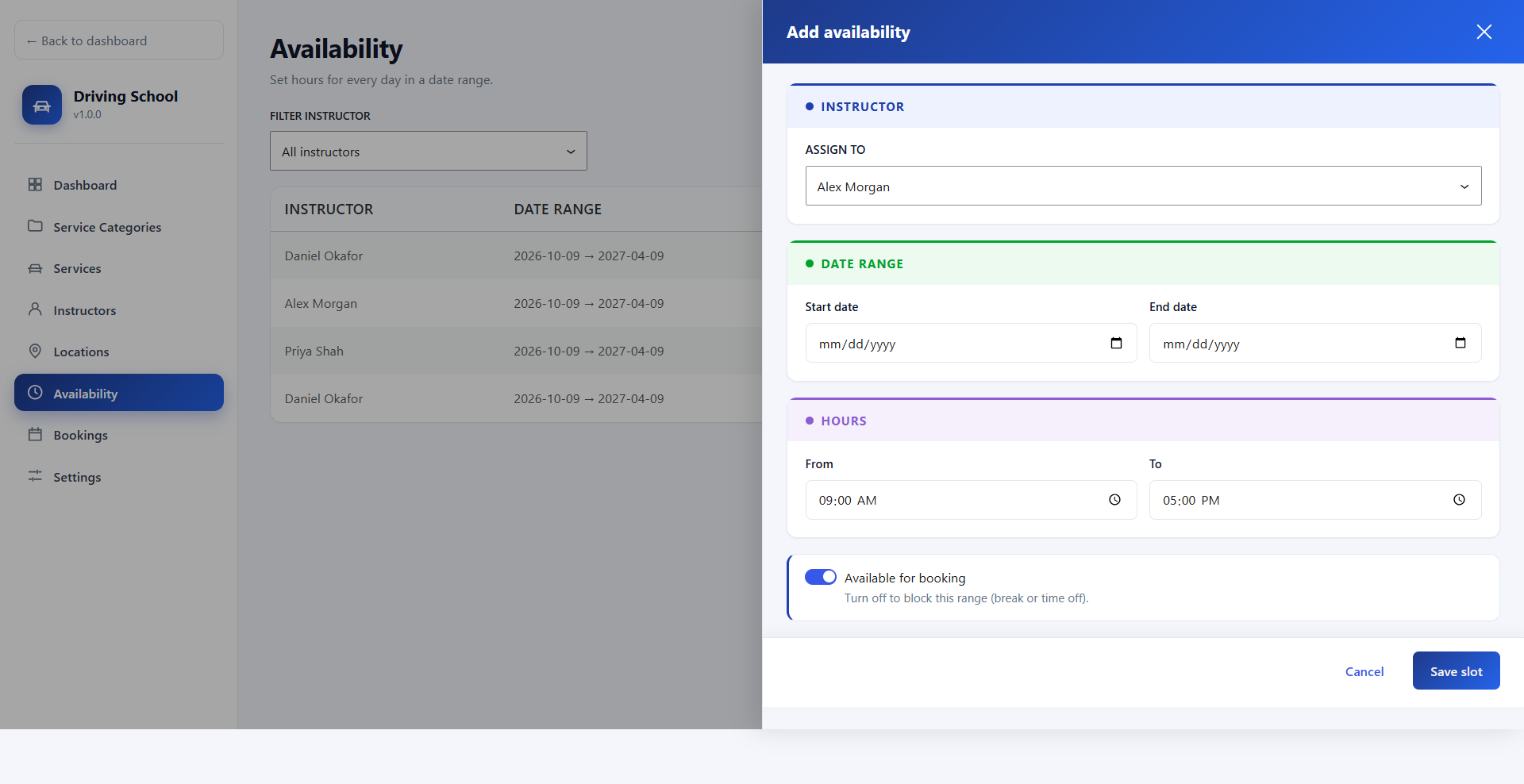
Availability defines when each instructor can teach. Each entry applies the same hours to every day in a date range. Use Filter instructor to see one instructor's entries.
- Click Add slot.
- Under Instructor, choose who the hours apply to.
- Under Date range, set the start and end dates.
- Under Hours, set the daily start and end times.
- Leave Available for booking on, or turn it off to block the range for a break or time off.
- Click Save slot.
Add several entries for the same instructor to create split shifts, for example 08:00–12:00 and 13:00–17:00 with a lunch break in between. Overlapping ranges are rejected.
Bookings
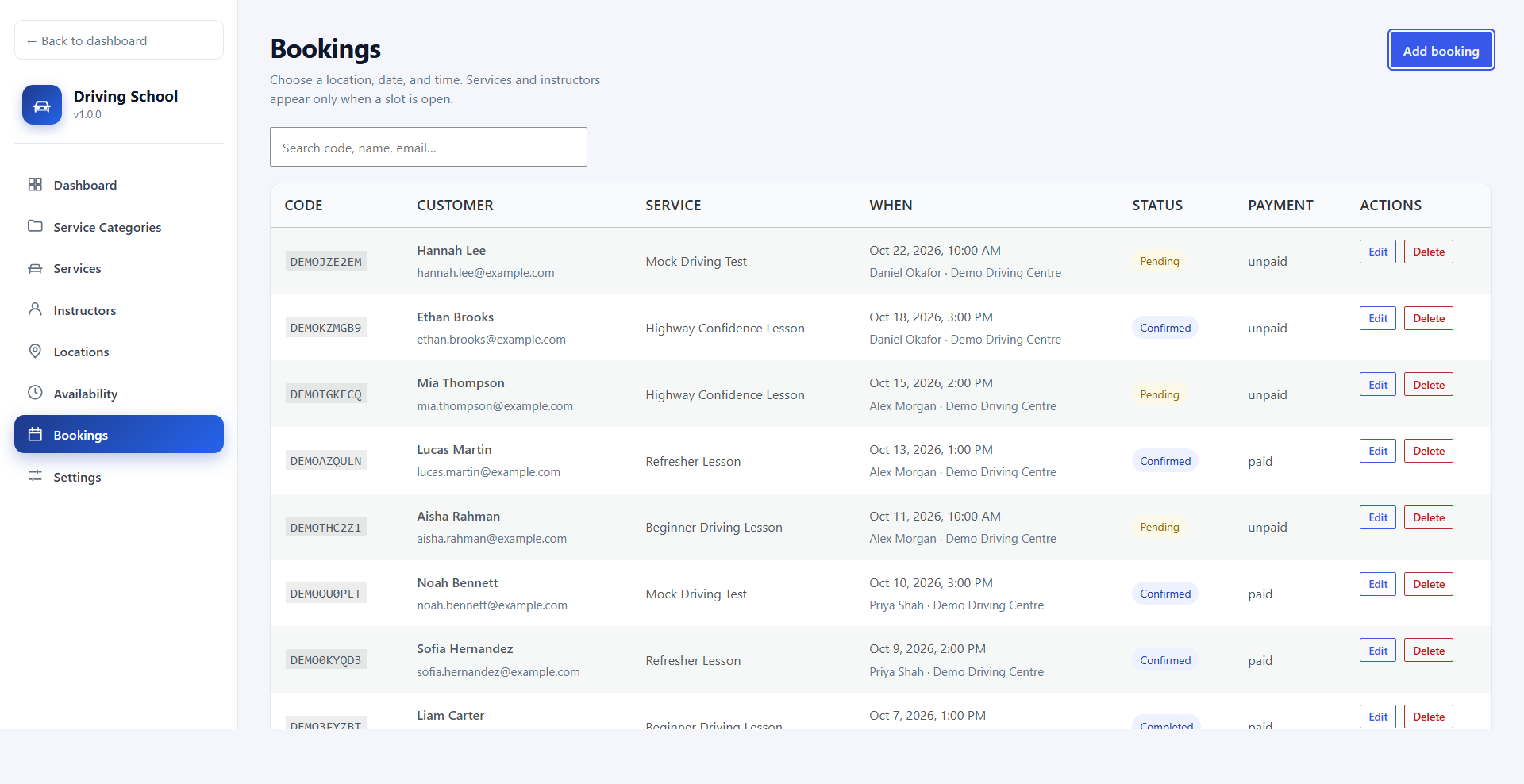
The Bookings screen lists every booking with its code, student, service, date and time, instructor and location, status, and payment status. Search by booking code, name, or email.
Click Edit to change a booking's status (pending, confirmed, completed, or cancelled), its payment status (unpaid, paid, refunded, or failed), or its notes. Mark direct payments as paid here once you receive them.
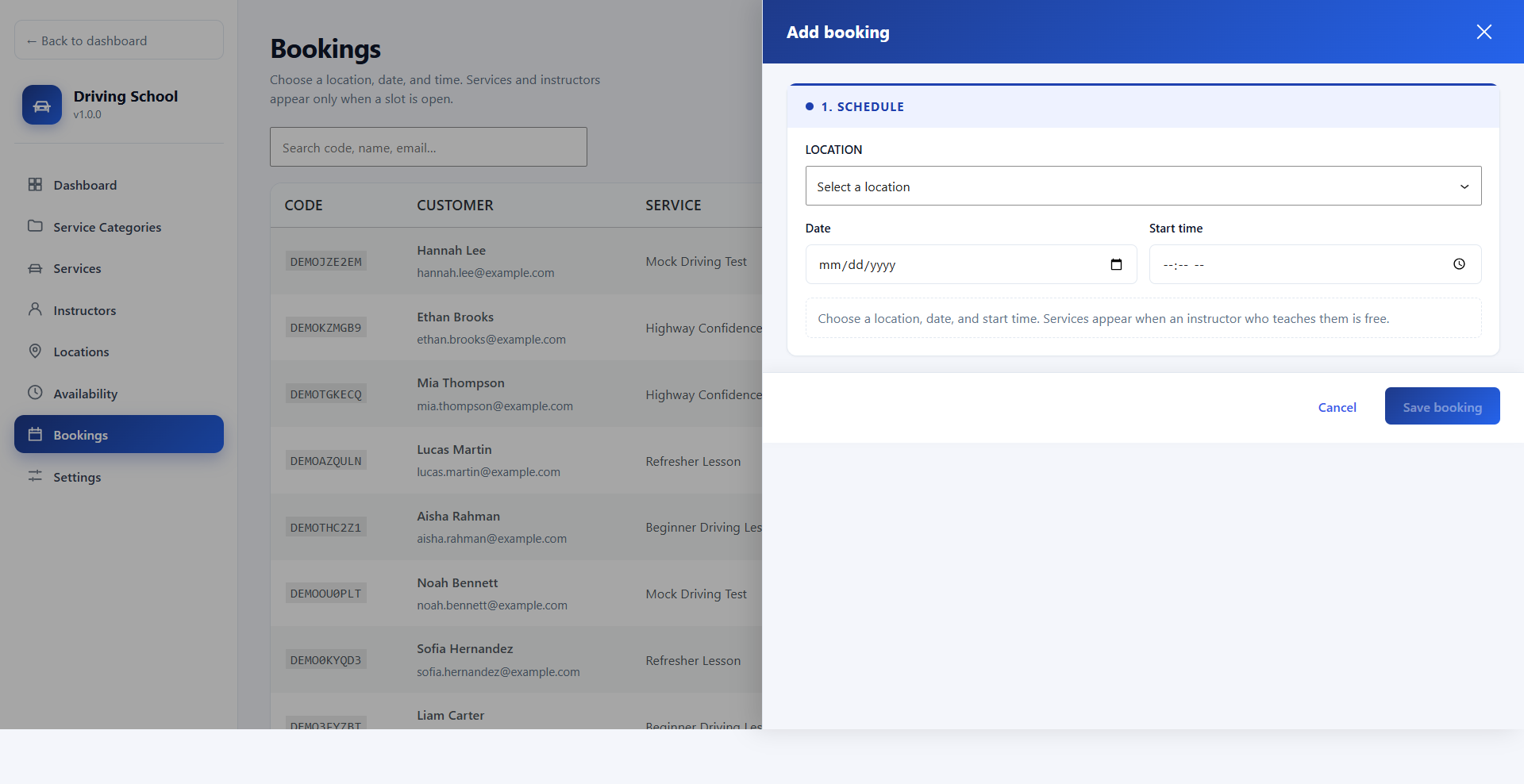
To book a lesson for a phone or walk-in student, click Add booking. Choose a location, date, and start time; services appear only when an instructor who teaches them is free. Then pick the service and instructor, enter the student's details, and click Save booking.
Student Experience
This is what your students see on the front end, from browsing lessons to completing a booking.
Book a Lesson
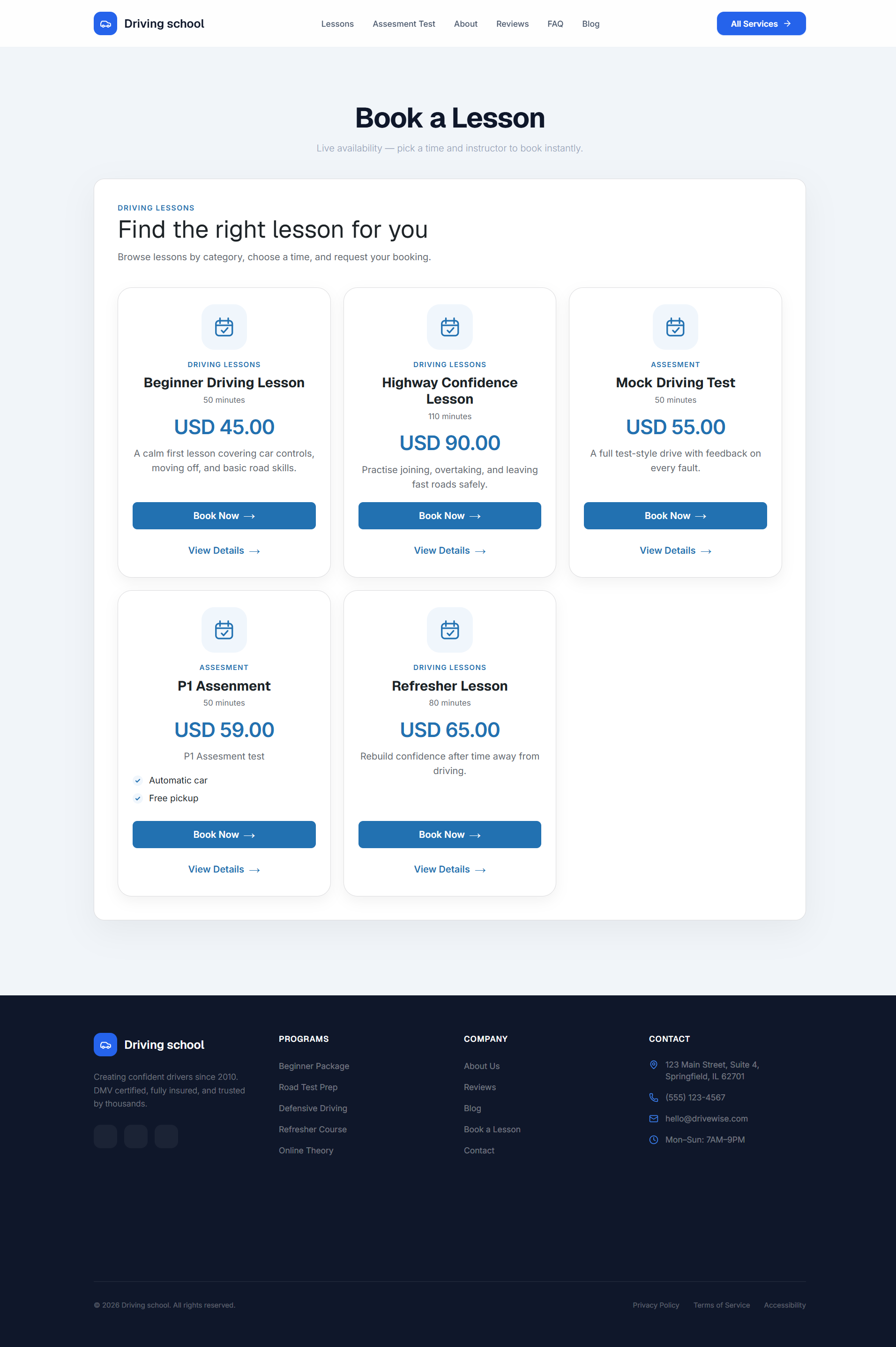
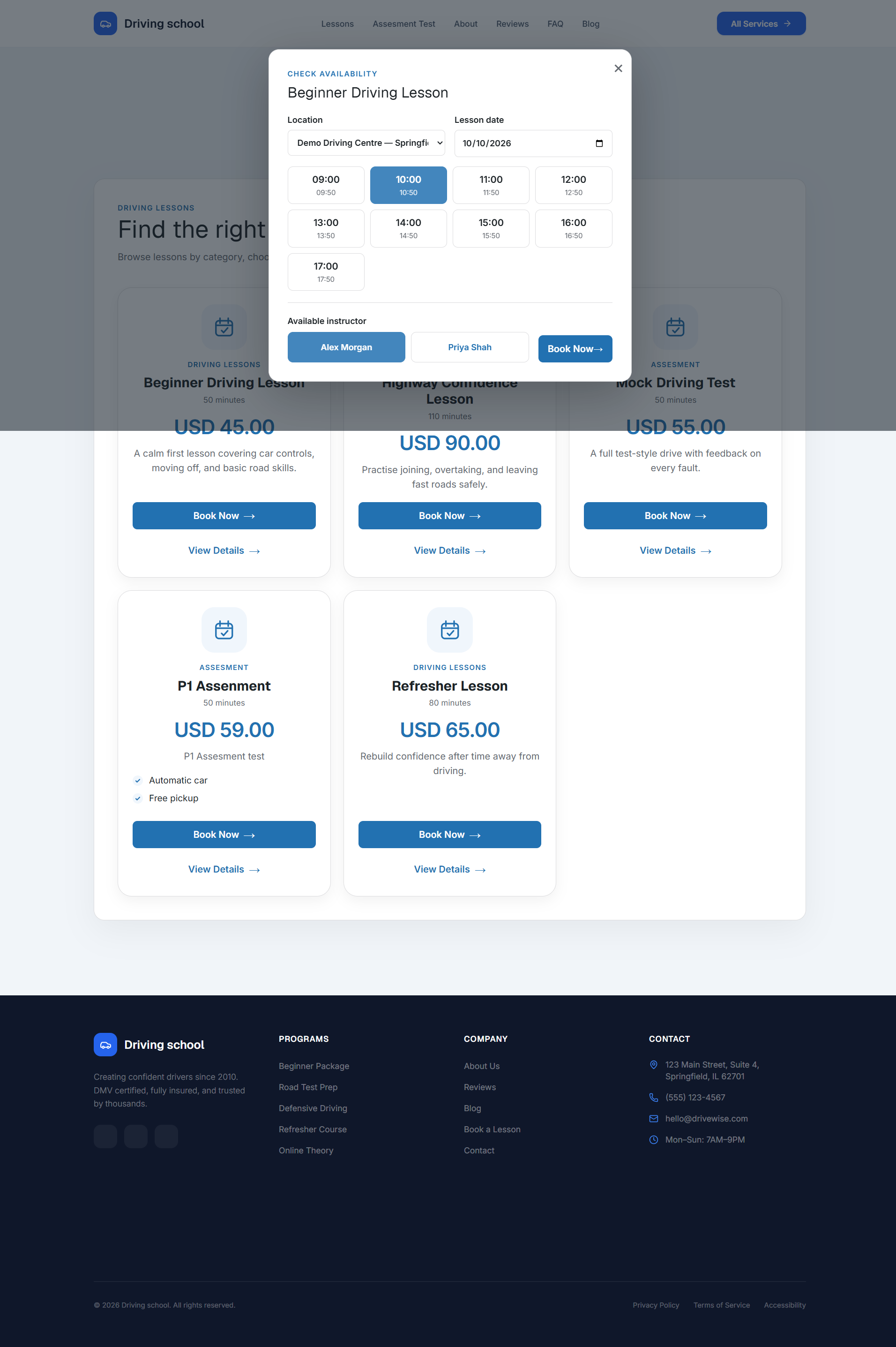
The Book a Lesson page shows your active lessons as cards. Each card shows the category, name, duration, price, description, and any features, with a Book Now button and a View Details link.
Check Availability
Clicking Book Now opens the availability window. With the time slot flow, the student:
- Chooses a location and a lesson date.
- Picks a start time from the generated slots. Each slot also shows when the lesson ends.
- Chooses one of the available instructors for that time.
- Clicks Book Now to continue to checkout.
With the time search flow, the student enters a start time instead and the plugin shows who is free. Either way, only times that respect instructor hours, existing bookings, buffer time, and minimum notice are offered.
Booking Checkout
The Booking Checkout page shows a summary of the lesson, location, date and time, instructor, and price. The student chooses a payment method, fills in the booking form, and submits:
- Pay online with card (Stripe) — the student is sent to Stripe Checkout to pay, then returned to your site. The booking is marked paid automatically.
- Pay directly (manual payment) — the booking is requested and your direct payment instructions are shown.
- WooCommerce — when enabled, the booking is sent to the WooCommerce checkout.
New bookings start as pending, and the assigned instructor is emailed.
Shortcodes
Use these shortcodes on any page, post, or Shortcode block. Exact shortcodes for each category and service can be copied from the Service Categories and Services screens.
| Shortcode | Description |
|---|---|
[ldsms_booking] | Full booking page. Lists every active service with the complete booking flow. |
[ldsms_featured_services limit="3"] | Lists services marked as Featured. Use limit to cap how many are shown, or remove it to show all. |
[ldsms_services category="category-slug"] | Lists active services from a single category. |
[ldsms_service service="service-slug"] | Shows one service with its details and Book Now button. |
[ldsms_service_detail] | Optional service details page. When a page contains it, View Details links open that page for the chosen service. |
[ldsms_checkout] | Booking checkout. Students are sent here after choosing a time. One page on your site must contain this shortcode. |
Examples:
[ldsms_services category="driving-lessons"]
[ldsms_featured_services limit="3"]
[ldsms_service service="beginner-driving-lesson"]
Troubleshooting
| Problem | Solution |
|---|---|
| A service shows no available times | Check that the service is active and offered at the chosen location, that at least one active instructor teaches it, and that the instructor has availability covering the date and the full lesson length. |
| Times are off by a few hours | Set the correct time zone under WordPress Settings → General. |
| Today's early times are missing | The Minimum notice setting hides times that are too soon. Lower it under Settings → General if needed. |
| Book Now does nothing or checkout is blank | Make sure a published page contains [ldsms_checkout]. The plugin creates Booking Checkout on activation; restore it from the trash or create a new page with the shortcode. |
| Stripe payment completed but booking still unpaid | Add the Stripe webhook with the URL from the Payment tab, enable the two checkout.session events, and paste the signing secret. Test and live modes use different secrets. |
| Webhook returns 404 | Set WordPress Settings → Permalinks to any option other than "Plain", then save. |
| Instructor emails not arriving | Check that instructor notifications are on under Settings → Email and the instructor has an email address. Enable SMTP and send a test email. Check the spam folder. |
| WooCommerce option is unavailable | Install and activate WooCommerce, then turn on Use WooCommerce for orders. |
| Demo data import is not offered | The full import only runs while there are no categories, services, instructors, or availability. If you already have services, use Import sample bookings on the dashboard instead. |
Frequently Asked Questions
Is this plugin only for driving schools?
It is designed for driving schools and instructors, but it works for any lesson or appointment business that books customers with staff at a location, such as motorcycle training, swimming lessons, or tutoring.
Can students book without creating an account?
Yes, when Allow guest booking is on. Logged-in students have their name and email filled in automatically.
How are instructors assigned to a booking?
Only instructors who teach the chosen service, are available for the full lesson, and have no clashing booking are offered. The student picks one from the instructor cards.
Can I prevent back-to-back or last-minute bookings?
Yes. Use Booking buffer to add a gap between lessons for the same instructor, and Minimum notice to block bookings too close to the start time.
Does WooCommerce have to be installed?
No. Stripe and direct payment work without WooCommerce. WooCommerce is only needed if you want to use its checkout and gateways.
How do I remove the demo data?
Delete the DEMO bookings from Bookings, then delete the demo instructors, services, categories, and location from their screens, or edit them into your own records.
What happens when I delete the plugin?
Deactivating keeps all your data. Deleting the plugin removes its custom tables and settings, including all bookings, so back up your site first.
Support
If you need help, contact us through lucrativeit.com or the plugin site at drivingschool.lucrativeit.com. Please include:
- Your WordPress and PHP versions
- Which payment method you use (Stripe, WooCommerce, or direct) and whether Stripe is in test or live mode
- Steps to reproduce the issue
- Any errors from Stripe's webhook log (remove secret keys)
- Screenshots if applicable
This plugin is licensed under the GPLv2 or later. Payment card numbers are never stored in WordPress.
Changelog
Version 1.0.0
- Online driving lesson booking with time slot picker and time search flows.
- Instructor selection cards for the chosen time slot.
- Service categories, services, instructors, locations, and instructor availability management.
- Bookings management with admin booking creation and live slot checks.
- Stripe Checkout, WooCommerce, and direct payment support.
- Instructor email notifications with SMTP settings and test email.
- Custom booking form builder.
- Buffer time, minimum notice, and slot break scheduling rules.
- Admin dashboard with revenue and booking statistics.
- First-run demo data import with sample bookings, also available from the dashboard.